flowchart

  subgraph AFTER_BREAK["<b>After break: Conditional logic and loans</b>"]
    direction TB
    B1["<b>Explain moving-average task</b> (15 min) · Homework: DAX moving averages"]
    B2["<b>Conditional logic and customer classification</b> (20 min) · 💻 Exercise: VIP status"]
    B3["<b>Conditional calculations</b> (15 min) · 💻 Exercise: VIP club credits"]
    B4["<b>Explain installment and annuity loan homework</b> (32 min) · Installment; Annuity with PMT"]
    B5["<b>Exam-result classification</b> (8 min) · 💻 Exercise: Exam result"]

    B1 --> B2 --> B3 --> B4 --> B5
  end

  subgraph BEFORE_BREAK["<b>Before break: Excel foundations and analysis</b>"]
    direction TB
    A1["<b>Introduction and organization</b> (20 min)"]
    A2["<b>Excel basics, formulas, and cell references</b> (20 min)"]
    A3["<b>Future-value calculation</b> (20 min) · 💻 Exercise: Future value"]
    A4["<b>Data handling and chart selection</b> (15 min) · 💻 Exercise: Coffee-shop charts"]
    A5["<b>Functions and descriptive statistics</b> (20 min) · 💻 Exercise: Sales statistics"]

    A1 --> A2 --> A3 --> A4 --> A5
  end
Session 01/Excel 1: Basics, formulas, charts, conditionals
Prepare Introductory slides (separate)
Note
Open:
- PPTX in VM
- Excel:
exercises.xlsxin VM (save a copy for the group to track its progress)
Introductory remarks
Start with a strong focus on programming (I love programming/Github stats, first student assistant job, …, student coauthors, but also: teaching it in an accessible way; move research interests to the end: theses)
Programming:
- Definition
- Think: what does that involve? what makes a program good?
- Illustrate with StreetComplete:
- Instructions to handle the map data
- Instructions to display (layout, like IPhone App experience)
- Instructions to validate and integrate
- Testing: automated tests - does the menu still open, is the map still displayed, can users still log in?
- Testing: user tests (feedback on bugs, improvements, …)
- Testing: peer review (readability, understanding code, taking responsibility for code)
- Chatgpt: ask for student votes and a few reactions (arguments)
- Highlight:
- Testing (ChatGPT makes errors): requires real-world experience (assumptions/requirements, typical interactions, events/exceptions that could be expected)
- Understanding becomes the new bottleneck (not just generating code) - indeed, large code-bases that are hard to assess in their entirety can be a problem.
- ChatGPT performs better when we know more about programming and give more precise instructions, recognize problems
- Responsibility (especially in mission-critical software) becomes more important
Course structure
- Sit in rows where you can read the screen well
- Show excercises.xlsx in Canvas for Download.
- Tutoring sessions start with the Python part of the course.
Note
Any questions?
For a successful course
I hope you enjoy the course, learn a lot, and develop skills you can actually use.
- Develop a good learning rhythm early. Work consistently and aim to understand and solve the tasks yourself.
- Expect errors. They are a normal part of programming and learning: test, understand, revise, and try again.
- Do not work in isolation. Form learning groups, compare solutions, and support each other.
- Ask questions—again and again. In class, in tutorials, and whenever something remains unclear.
- Use the support available. Our tutors do an excellent job and are there to help you.
- Keep going. Perseverance and genuine understanding are the best preparation for success in the course and exams.
Slide 1 - Excel basics
In the Excel part, we have two goals:
- Using Excel competently (references, formulas, pivot tables)
- Structuring business problems to solve them effectively (~ programming)
Start Excel and explain the following (without slides):
In-class demo ../materials/session_01/exercises.xlsx – Sheet: Start
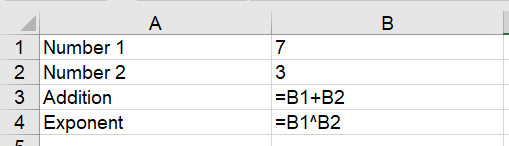
- Rows, columns, cells, entering values like numbers, text, boolean values
- Entering formulas in the cell or the bar
- Selecting cells by typing “=A1+A2” vs. by clicking on cells
- Illustrate data types: Add “€” to the numbers and show that the SUM/EXP no longer work.
ImportantTypes of cells
Understand which type of cell is needed:
- Data cells (plain values)
- Calculated cells (formulas)
Slide 7: Future Value (first exercise)
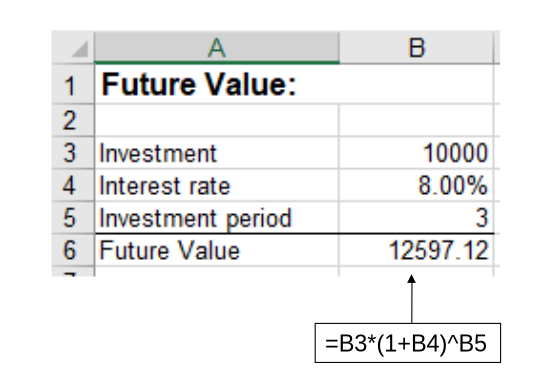
In-class exercise ../materials/session_01/exercises.xlsx – Sheet: Future_Value
Task: Download the exercises.docx from Canvas and solve the first sheet: Future_Value.
Illustration:
- 100€ - 5% interest
- 100€ * 0.05 = 5€ earned
- 100€ * 1.05 = 105 € amount after year 1
- 100€ * 1.05 * 1.05 = …. amount after year 2
- …
- 100€ * 1.05^n
Reminder: “Scenarios” means that some cells are data cells that we want to change to automatically see what the updated outcome is.
Solution:
Note
Next: Sheet Cost_Revenue (slides only afterwards).
Slide 8: Referencing cells (example: cost revenue calculation)
Note
Remind students to raise questions when anything is unclear.
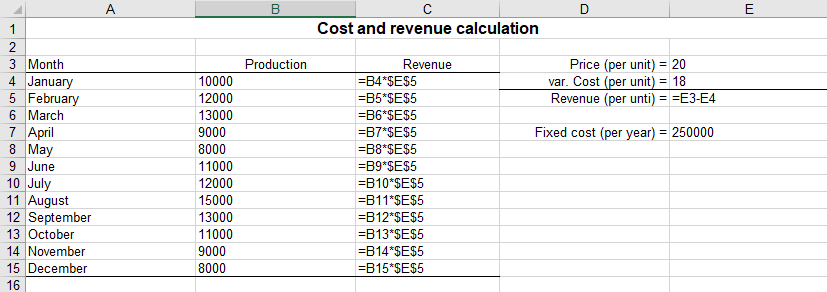
Key insight: To copy formulas, we need to use appropriate relative, absolute, mixed references.
Setup:
Illustrate as a first example business (e.g., coffee cups).
Overall production/sales is on the left, per unit on the right.
Remember: we calculate per-unit reveue once and then reference it (instead of hardcoding)
Step 1: Write all formulas by hand. Point out that this will take long and likely introduce errors. Solution: copying formulas (Excel will automatically update the references)
Step 2: Clarify expectation (24000 in the next cell). Write the revenue formula and copy the fomula down. Value does not match. Use the
Formulas > Trace precedentsto show that it uses the right valuesStep 3: Illustrate use of an absolute reference, update cells, verify results. (Use
F4to switch reference type.)
In-class demo ../materials/session_01/exercises.xlsx – Sheet: Cost_Revenue
Solution:
NoteWrite on the blackboard
| Reference | Example | Copying right | Copying down |
|---|---|---|---|
| Relative | A1 |
B1, C1, … |
A2, A3, … |
| Absolute | $A$1 |
$A$1, $A$1, … |
$A$1, $A$1, … |
Highlight: Need to anticipate how a formula will be copied to use relative vs. absolute references appropriately.
Slide 10 - Future Value (second exercise)
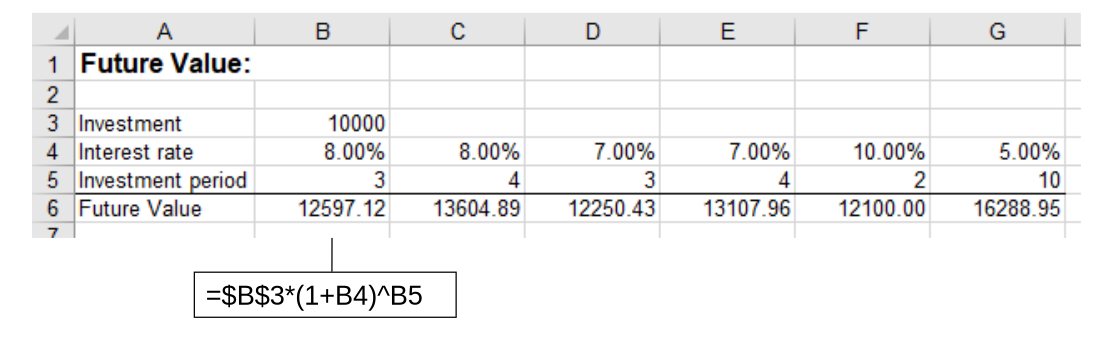
In-class exercise ../materials/session_01/exercises.xlsx – Sheet: Future_Value2
Show slide 10.
Explanation: The “Scenario analysis” will be done in separate columns. The investment of 10000 remains the same.
Highlight: We want to copy the formula to the right.
Solution:
NoteExam advice
Note: Write all formulas below in such a way that they can be copied down/right without modification. Hard-coding numbers in formulas for which there exist data cells in the sheet is considered a mistake.
Highlight that copied down/right is important - illustrate what without modification means (e.g., copying down an absolute reference that should be relative/mixed), give examples for hard-coding values.
TipPro tips
Expect that Excel spreadsheets will contain errors. Always check and debug: for the exercises, but also in your job, when you build an Excel spreadsheet or when you get one from a colleague.
- Show formula mode (
ctrl+shift+`) - Show predecessor/successor visually
- Show calculations (stopped?)
Slide 8: Continued example
NoteShortcuts
alt+m+p: show precedentsalt+m+a+`Enter’ : hide
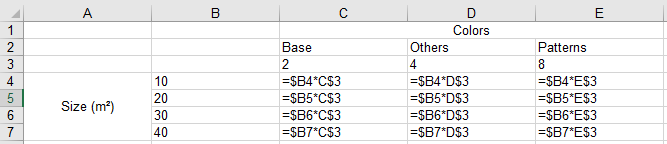
- Step 4: extend example: Cost depends two dimensions: assume I am a painter and paint appartments of different sizes with different colors (I will paint your appartment, penthouse etc. with the color you like, base colors are cheap, others more expensive, so it depends on both: size and color). Complex - we need an Excel table to understand what to charge. (small/medium/large - no square meters, I see it immediately; if you order something with patterns, I will be rich). Illustrate formula copying to the whole table (sizes will always in column XXX, so make XXX absolute. Prices will always be in row YYY, so make YYY absolute.)
- Check: understanding/questions?
In-class demo ../materials/session_01/exercises.xlsx – Sheet: Cost_Revenue_Painter
Solution:
NoteUpdate the blackboard
| Reference | Example | Copying right | Copying down |
|---|---|---|---|
| Mixed — absolute column | $A1 |
$A1, $A1, … |
$A2, $A3, … |
| Mixed — absolute row | A$1 |
B$1, C$1, … |
A$1, A$1, … |
Show the table on the slide afterwards
Slide 13 - Charts illustration
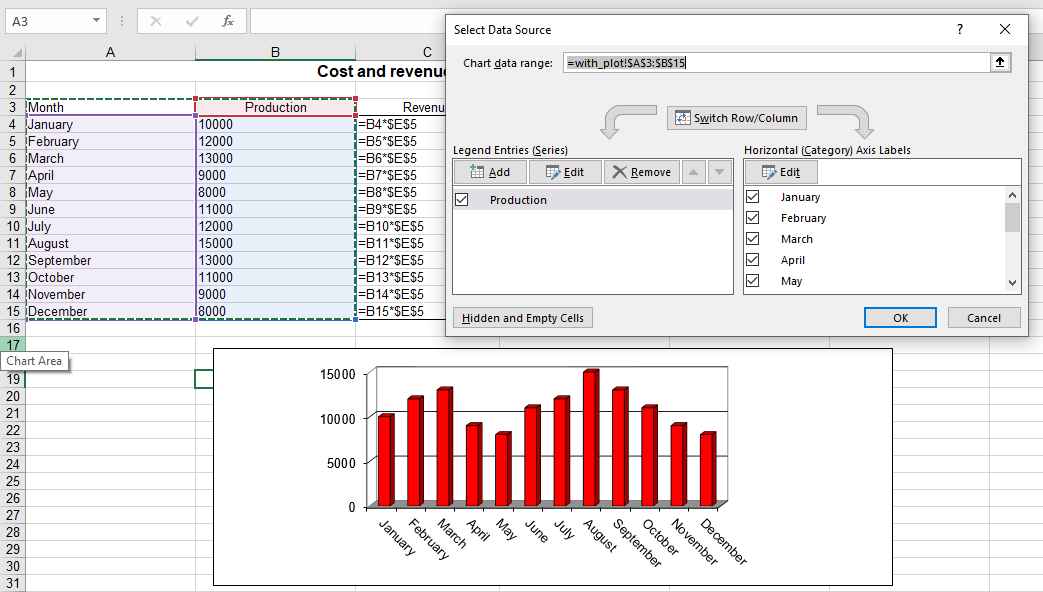
In-class demo ../materials/session_01/exercises.xlsx – Sheet: with_plot
Slide 14 - Exercise Coffee-shop charts
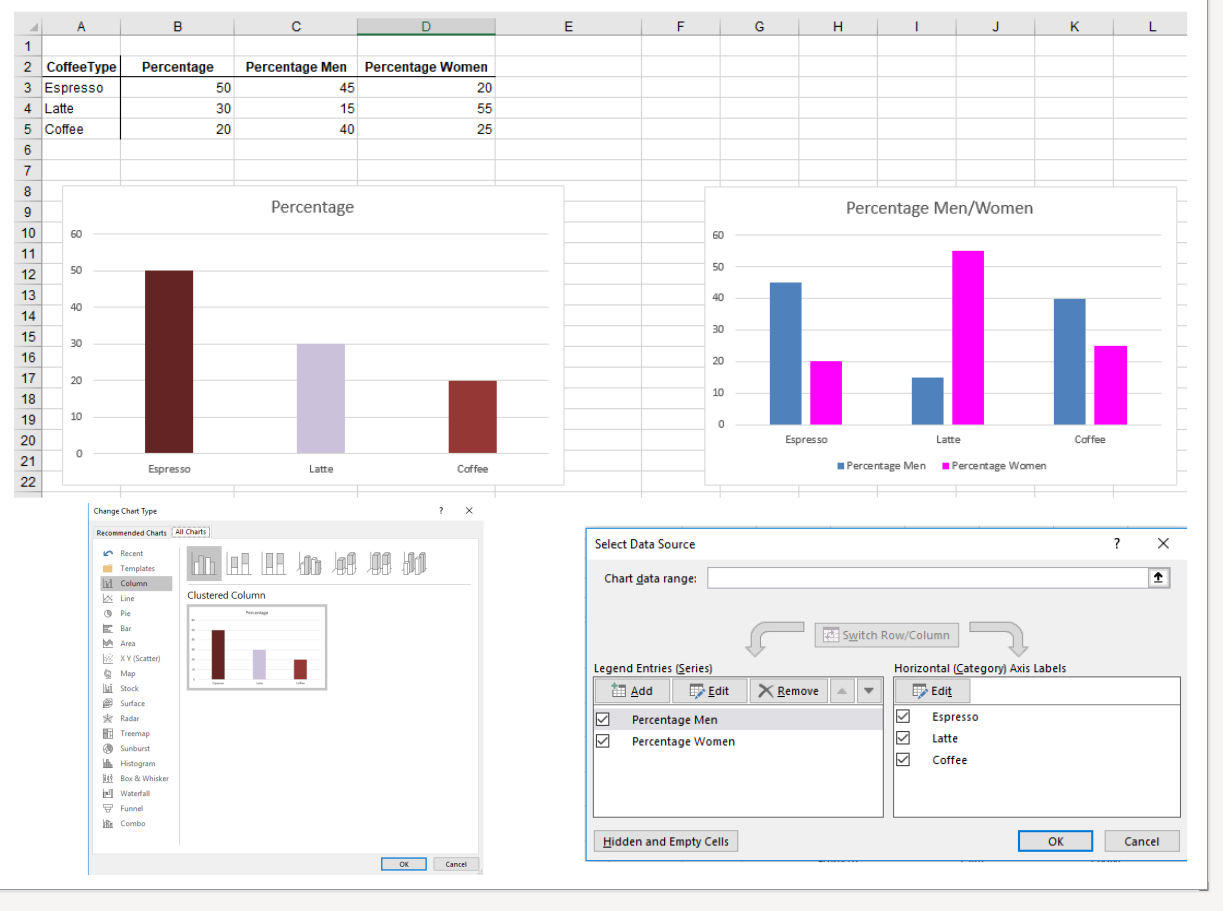
In-class exercise ../materials/session_01/exercises.xlsx – Sheet: CoffeeShop
Explain task by painting expected charts on the blackboard.
Break — 10 minutes
Slide 16 — Formula syntax and functions
- Show graphical Formulas selection (areas: financial, logical, text, …)
- Demonstrate the function-argument separator.
- Examples (at the bottom of slide 16): how many parameters are there in each function?
- Explicitly distinguish between a formula and a function.
ImportantTest Excel configuration
Test requirement: For SUM(3,5): everyone should have 8 as the result. This ensures that language is set to English and parameters are separated by ,.
English: Make sure Excel is in English (File -> Options -> Language; restart)
Separator:
- Close Excel.
- Press
Win+R. - Enter
intl.cpland press Enter. - Click Additional settings… / Weitere Einstellungen…
- Under Numbers / Zahlen, set:
- Decimal symbol / Dezimaltrennzeichen:
. - Digit grouping symbol:
, - List separator / Listentrennzeichen:
,
- Confirm with OK and restart Excel.
In Excel, ensure File → Options → Advanced → Use system separators remains enabled.
Slide 18 - Formula illustration
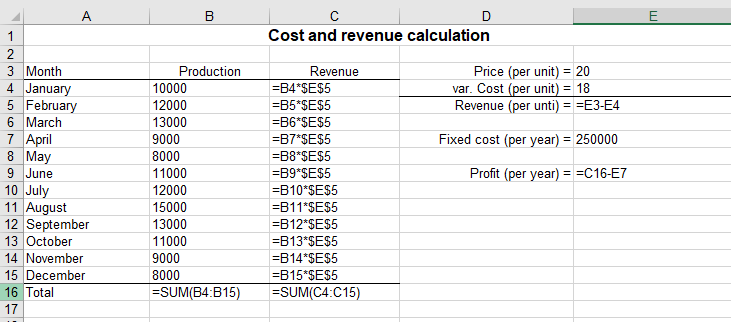
In-class demo ../materials/session_01/exercises.xlsx – Sheet: simple
Add the =SUM() at the end, using a range of cells.
Then, add the formula for Profit (per year).
Show the evaluate formula option (Formulas ribbon):
Example: =B15+SUM(C4:C23).
Then show slide 17.
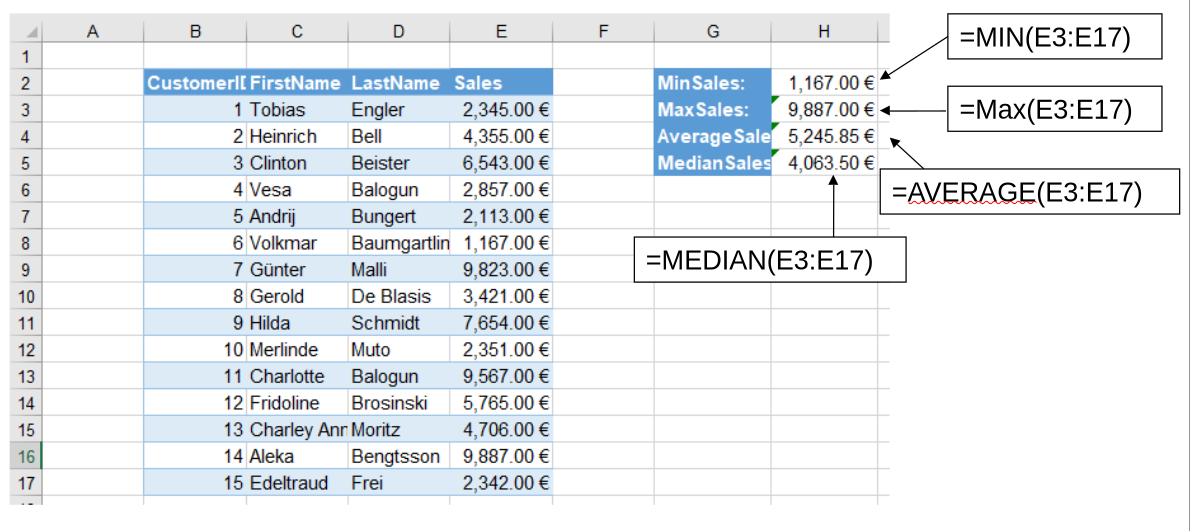
Slide 19 - Sales statistics
In-class exercise ../materials/session_01/exercises.xlsx – Sheet: Sales (conditionals)
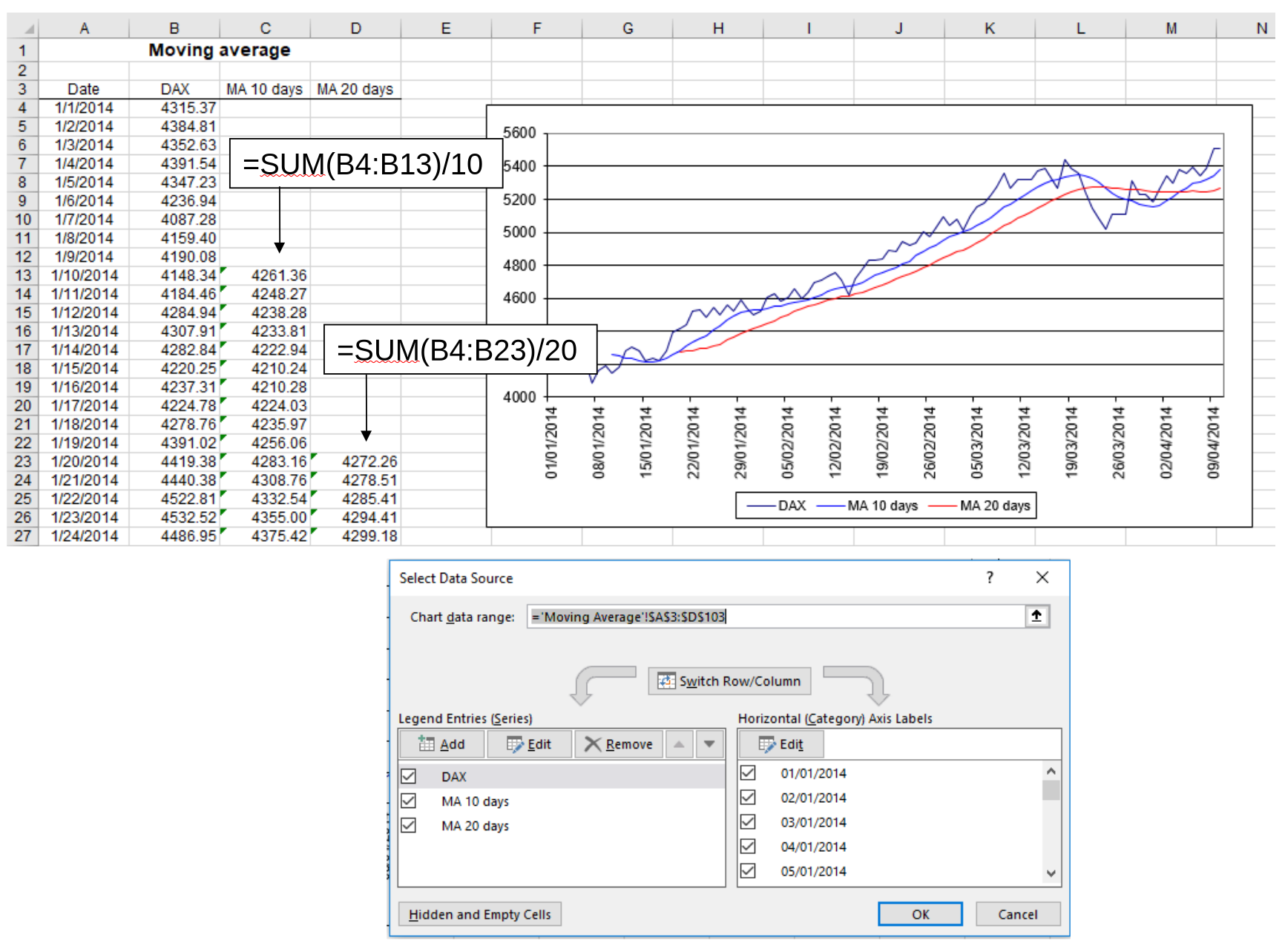
Slide 20 — DAX moving averages (first homework)
Homework ../materials/session_01/exercises.xlsx – Sheet: Moving Average
Before or after the break.
- Explain the figure, then the formula, and then ask students how the spreadsheet should look like (draft column-names, maybe where the formulas start, but not the specific formula solutions)
- Focus on the figure and “average of last 10 or 20 days”. (focus less on the formula)
- Draft structure on the blackboard
- Last step: create the visualization…
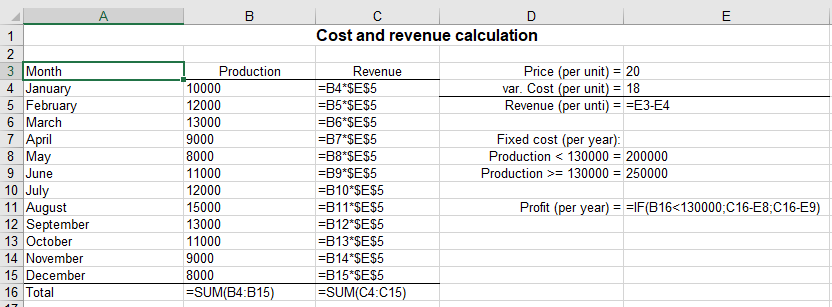
Slide 22 - IF Dialogue
Opens when selecting ribbon Formulas, Logical, IF
In-class demo ../materials/session_01/exercises.xlsx – Sheet: conditional_cost
Task: introduce conditional fixed cost and calculate annual profit (based on conditional fixed costs).
Solution:
Slides 23–24 — VIP classification and credits
In-class exercise ../materials/session_01/exercises.xlsx – Sheet: VIP
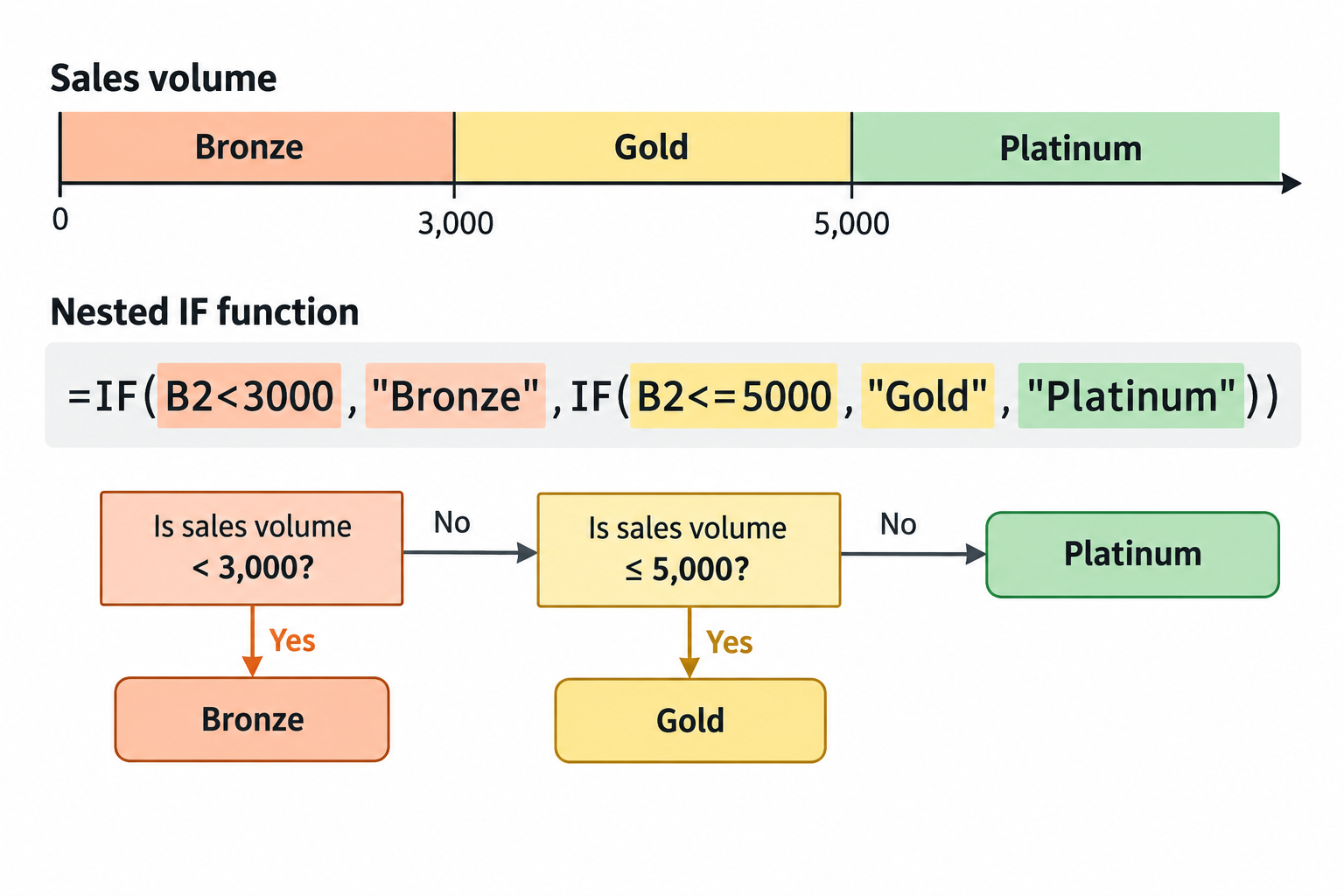
Prefer nested IF functions for the VIP-status exercise (in part II).
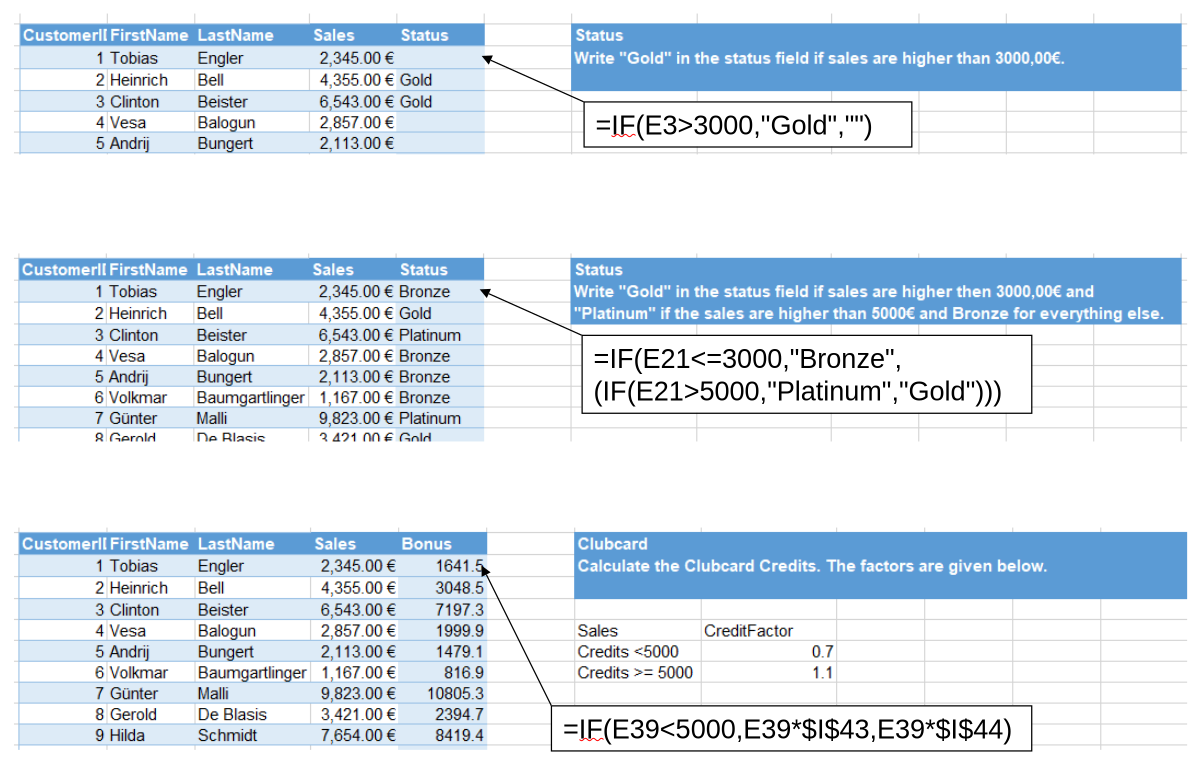
Solution: Illustrate the nesting in part 2 on the blackboard:
Slide 25/26 — Installment/annuity loans (Homework)
Homework ../materials/session_01/exercises.xlsx – Sheets: Installment and Annuity
Allow sufficient explanation because this exercise has caused difficulties in previous cohorts.
Illustrate logic
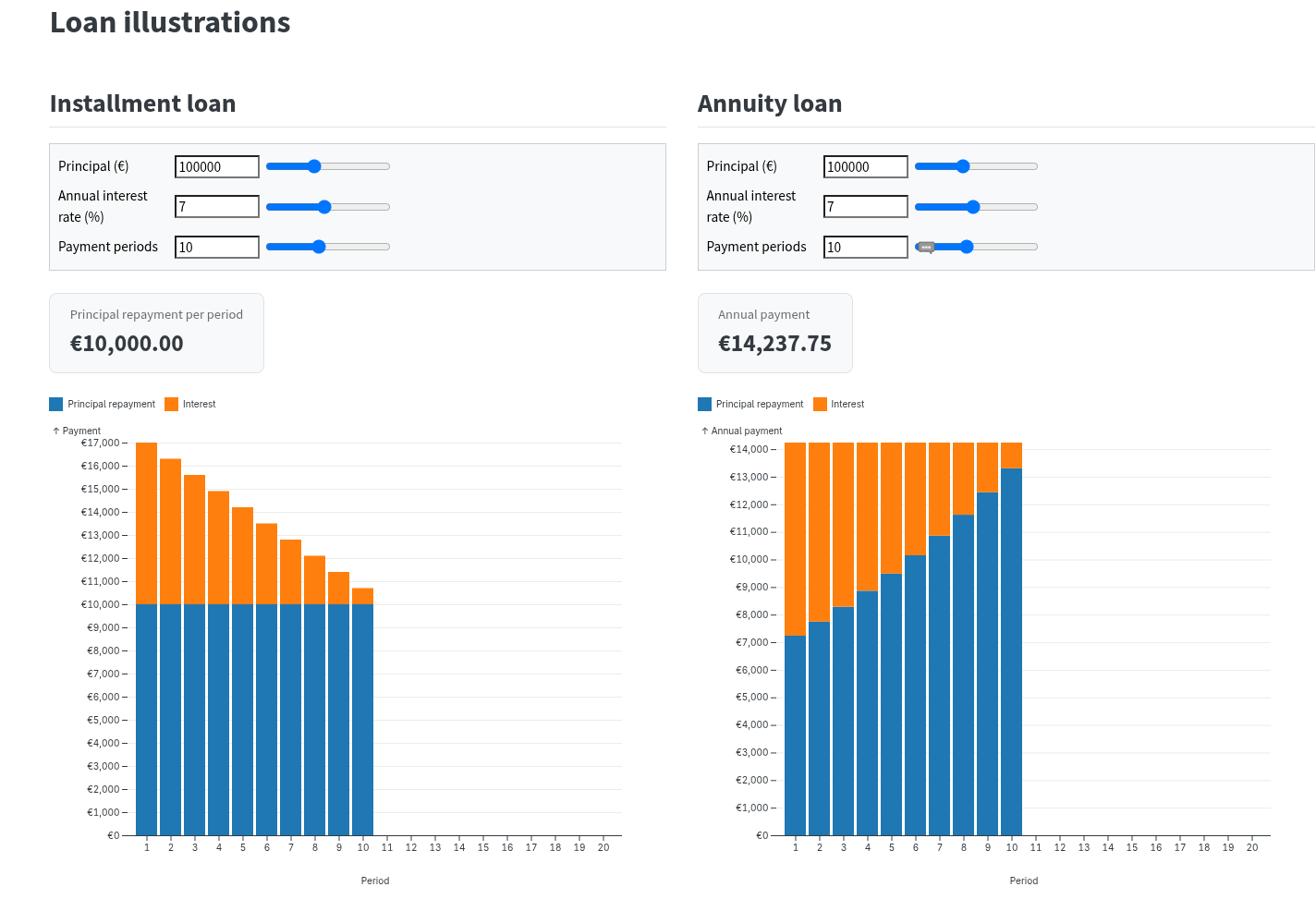
- Use the visualization: materials/loans.html.
- There are some parameters that we can adjust (principal, interest, payment periods) and others that are calculated (repayments). It’s the same principle in this interface and in your Excel sheet.
NoteUnderstanding the difference between fixed installments and annuity loans
With a fixed-principal installment loan, the principal is reduced more quickly at the beginning, which lowers the total interest paid. However, this also means that the initial payments are higher.
Excel sheet: Installment loan
- Work through the repayment logic in the Excel sheet: hard-code values instead of adding formulas.
- Students then transfer the calculation to Excel as a homework.
- Make sure the repayments will not be too much and exceed the remaining principal!
- From period 2 onward, repayment requires an
IFcondition, but students should identify the need for the condition themselves.
Excel sheet: Annuity loan
- Annuity: Use the
PMT()function in the annuity field. Then, start by calculating the interest. The repayment is the remaining amount.
Important
- The whole table must be filled with formulas. Users will adjust the “number of periods” manually to visualize different scenarios.
- Interest: is always paid on the remainder (whole amount that is still owed) in the previous period.
- Insert formulas to make sure that when users modify the
amount,interest rate, orredemption, thepayments tableis updated automatically. - In the annuity loan task, the
annuityshould also be updated automatically.
Slide 27 Exam
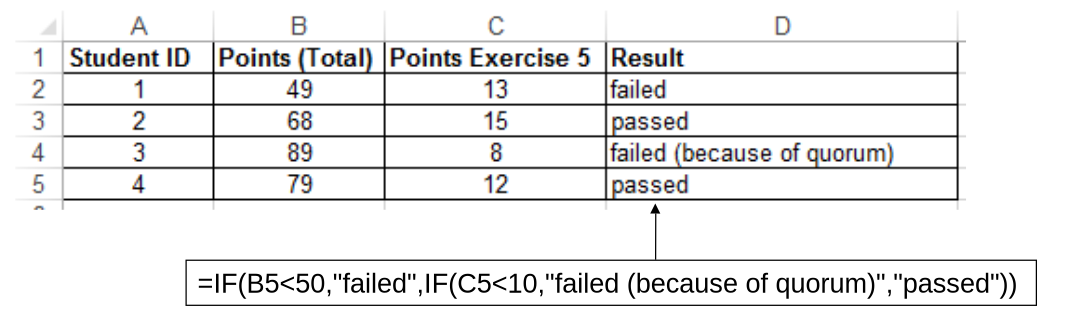
In-class exercise ../materials/session_01/exercises.xlsx – Sheet: Exam
Show the task description on p.27 to explain the logic (conditional: more than 10 points in Exercise 5 to pass).
Slide 28: Special IF functions
Solve together (before revealing slide 28, which contains the solutions).
In-class exercise ../materials/session_01/exercises.xlsx – Sheet: Department

Summary and announcements (next session)
Prepare the homework for next session (if this is tomorrow: do it today)!
- DAX moving averages
- Loans: Installment and annuity
TipNotes for improvement
Take notes (improvements, common questions) on a separate paper and add to feedback.qmd after the session.